

Your theme controls how your website looks. We’re going to install GeneratePress, then add a child theme to keep your changes safe when GeneratePress updates.
What Is a Theme?
A theme changes how your website looks, not what’s on it. Your pages, posts and pictures stay put.
Install GeneratePress, install the child theme, activate the child theme. That’s it.
On This Page
| Install GeneratePress | Download the Child Theme |
| Upload the Child Theme | Activate the Child Theme |
| Check Your Themes | |
1. Install GeneratePress
Go to: Appearance → Themes
Click Add Theme.
In the search box, enter: generatepress


- ☐ Hover over GeneratePress and click Install.
- ☐ Wait for the installation to finish.
- ☐ Click Activate.
2. Download the Child Theme
Download the GeneratePress Child Theme (.zip)
Save it to your Downloads folder. Don’t unzip it.
Using a Mac?
If Safari unzips it into a folder, right-click the folder, choose Compress, and use the new .zip file.
3. Upload the Child Theme
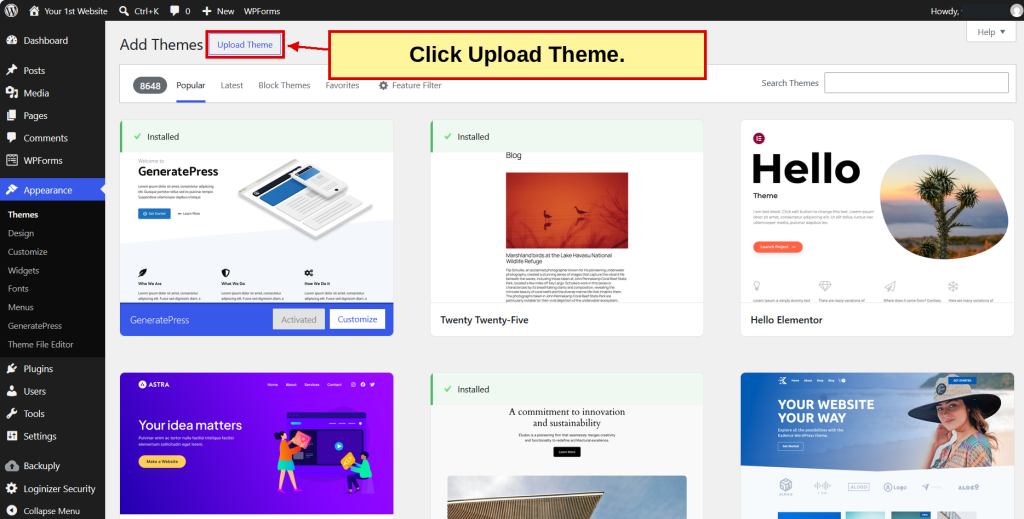
Go to: Appearance → Themes → Add Theme
Click Upload Theme.
Click Browse.

Select generatepress-child.zip and click Open.

Click Install Now.

4. Activate the Child Theme
WordPress checks that GeneratePress is installed, then installs the child theme.

Click Activate.
5. Check Your Themes
Go to: Appearance → Themes
- ☐ GeneratePress Child is active.
- ☐ GeneratePress is installed beside it.
Never Delete GeneratePress
Your child theme depends on it. Keep one default theme, such as Twenty Twenty-Five, as a spare. The others can be deleted.
Want to know more? Read Chapter 7: Inside WordPress → Themes.
| ← Previous Step 7 WordPress Plugins |
Down & Dirty Step 8 WordPress Themes |
Next → Step 9 Planning Your Pages |
