

Your homepage is done. Now build the rest of the pages on your list: About, Services, FAQ and any others you planned. It’s the same Add Page screen every time.
One Page at a Time
Add Page, title, content, Save Draft, Preview, Publish. Repeat for each page. Your Contact page gets its own step next.
On This Page
| Add a Page | Add Your Content |
| Publish and View | Check Your Page List |
1. Add a Page
Go to: Pages → All Pages
Click Add Page.
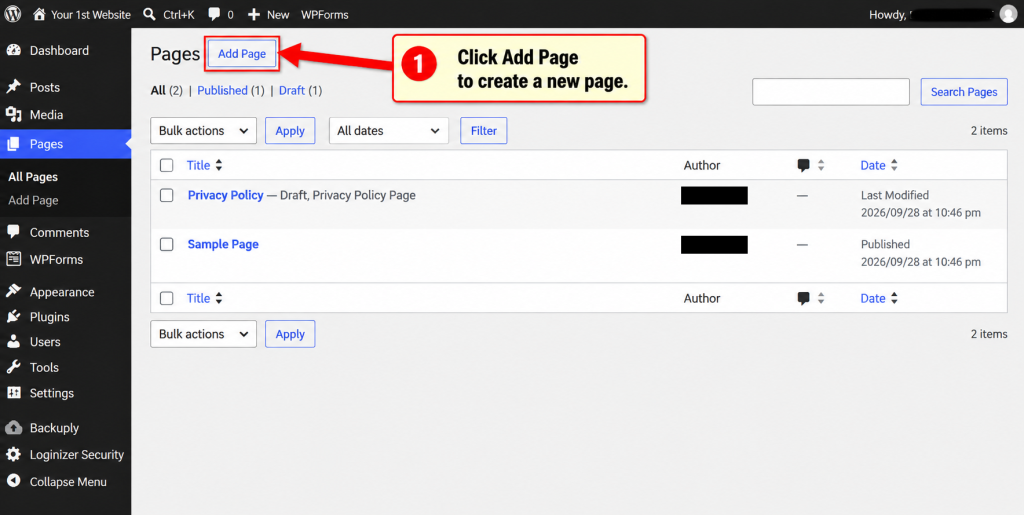
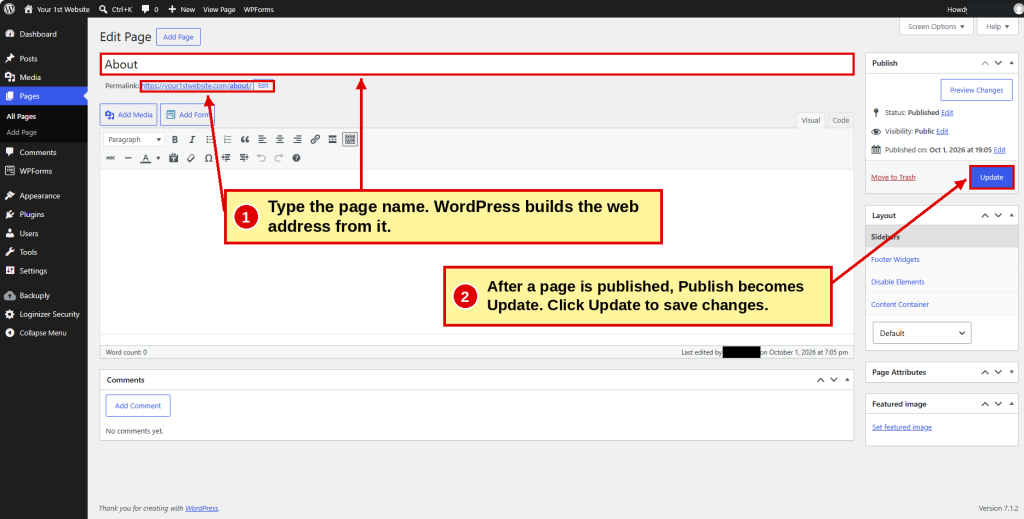
- ☐ Type the page name in the Title box, like About.
- ☐ WordPress builds the web address from the title.
2. Add Your Content
Use the Paragraph menu to make each section title a Heading 2. Click Save Draft often.
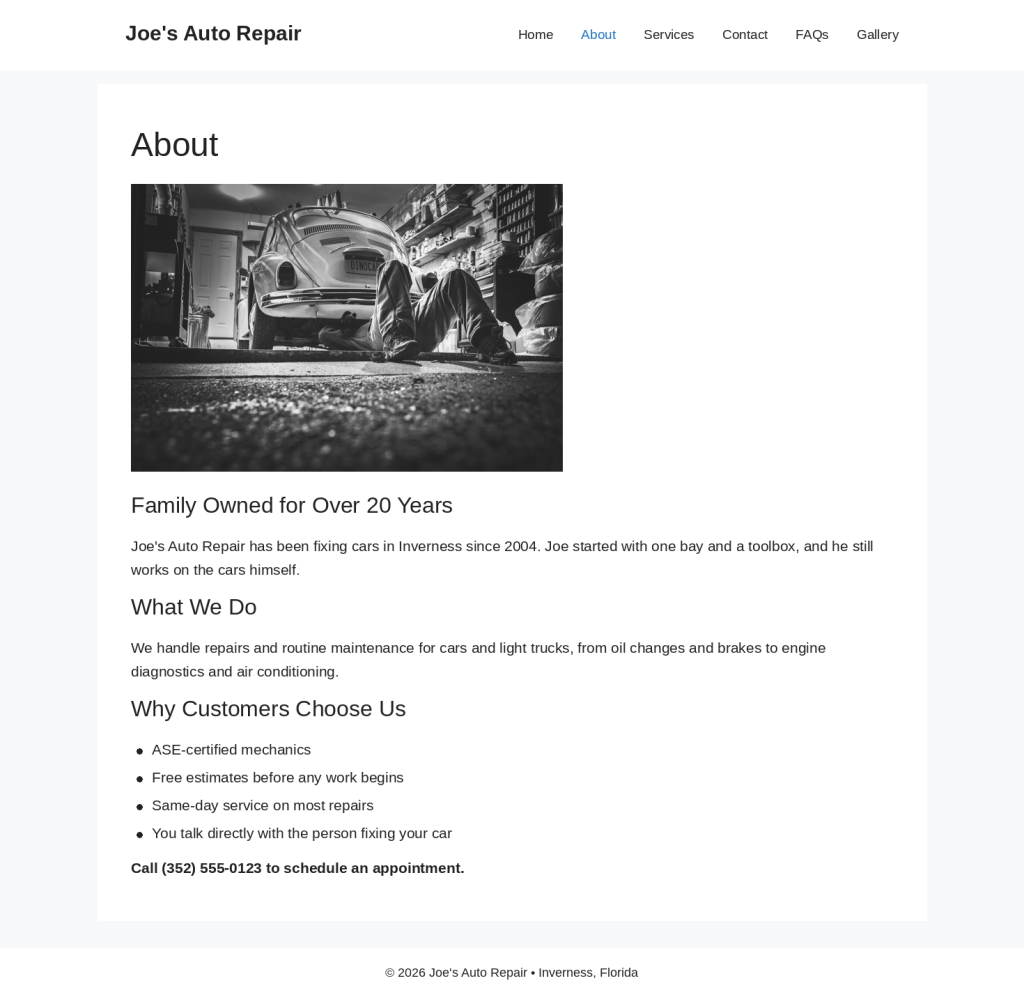
About Page
- ☐ Who you are and how long you’ve been in business
- ☐ What you do
- ☐ Why customers choose you
- ☐ A real photo
- ☐ What to do next: call, visit or contact you
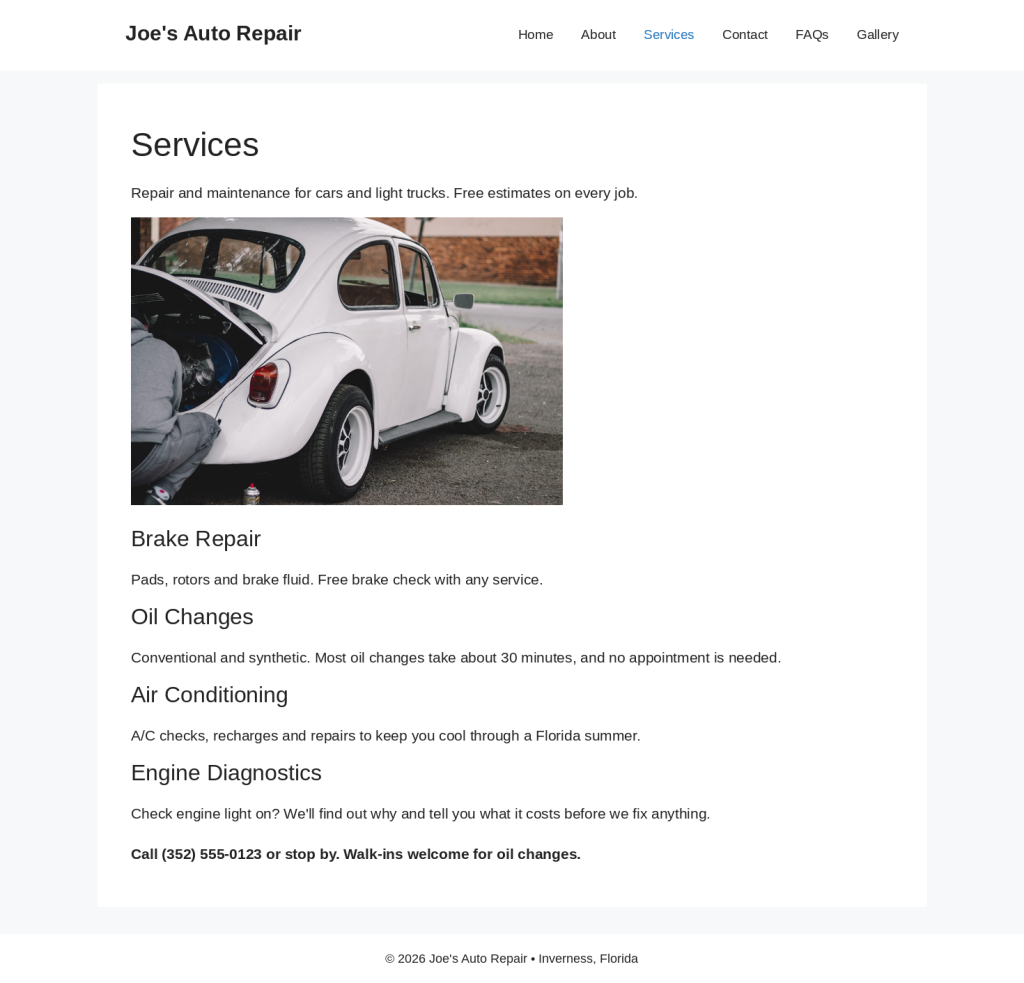
Services Page
- ☐ A heading for each main service
- ☐ A sentence or two about each one
- ☐ Prices or promises, if they help: free estimates, no appointment needed
- ☐ What to do next
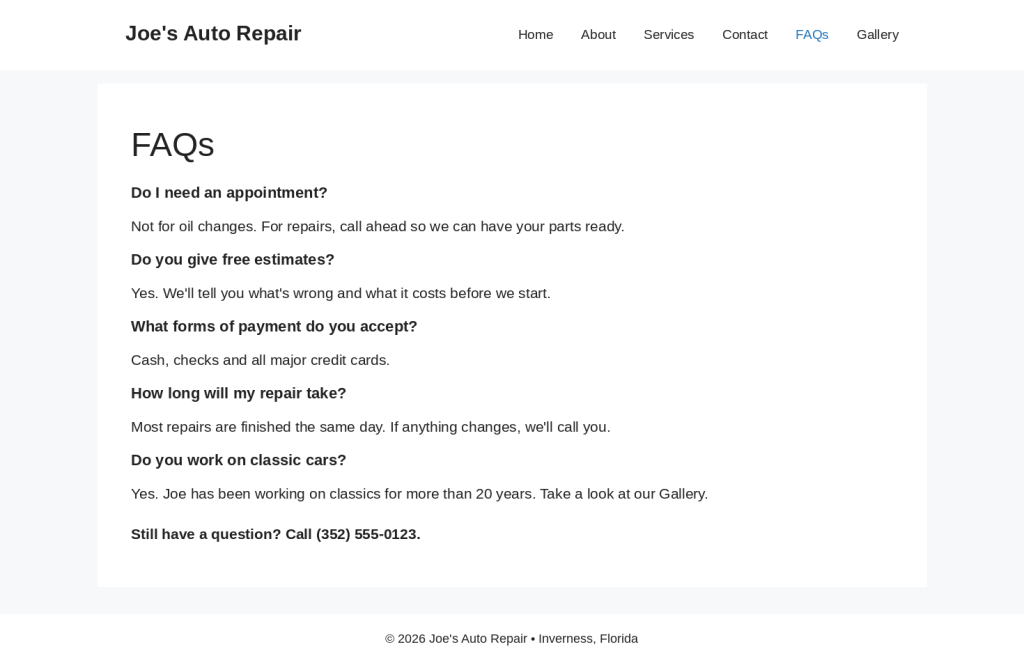
FAQ Page
- ☐ Questions customers really ask, in bold
- ☐ A short answer under each one
- ☐ What to do next
Stuck on What to Say?
Ask an AI assistant to draft a first version, then rewrite it in your own words.
3. Publish and View
- ☐ Click Preview to check your page.
- ☐ Click Publish.
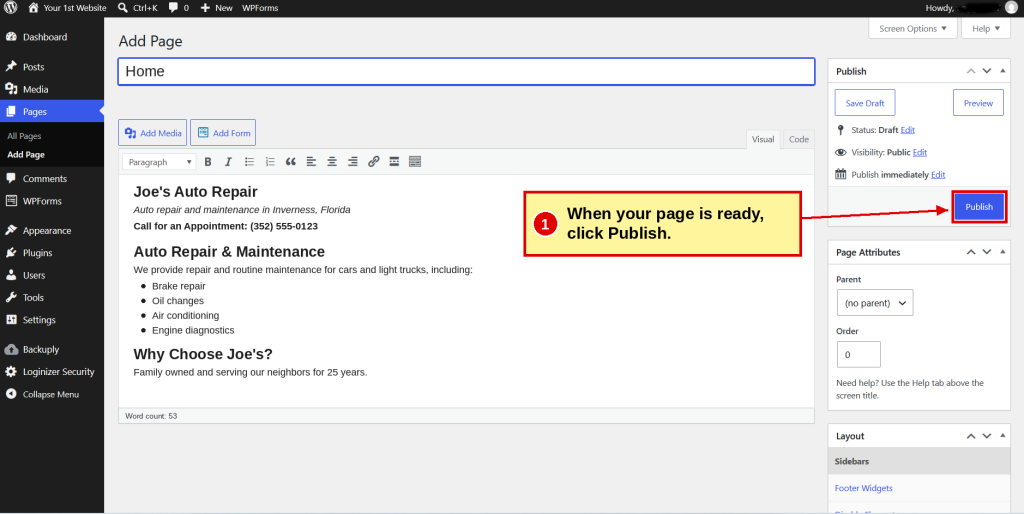
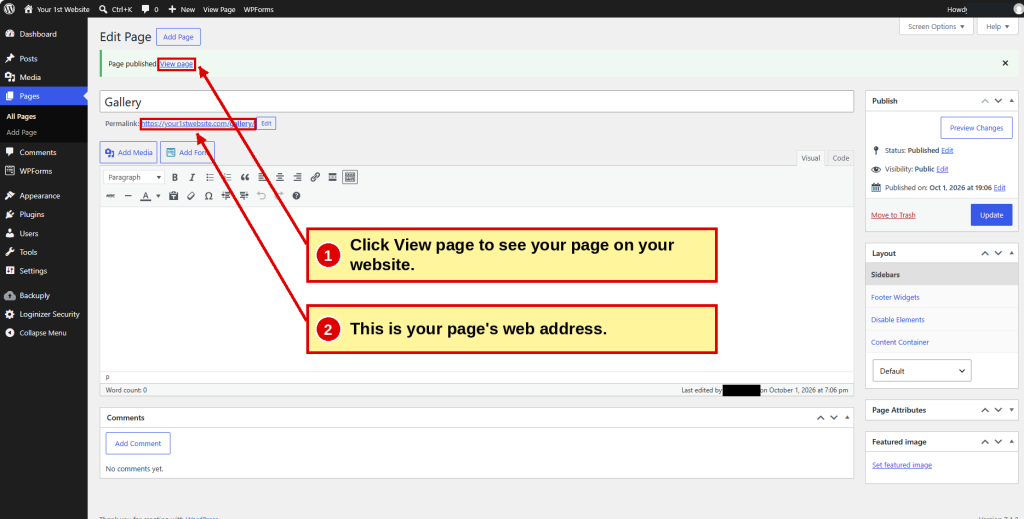
After a page is published, the Publish button becomes Update. Click Update whenever you make changes.
Click View page to see it on your website.
4. Check Your Page List
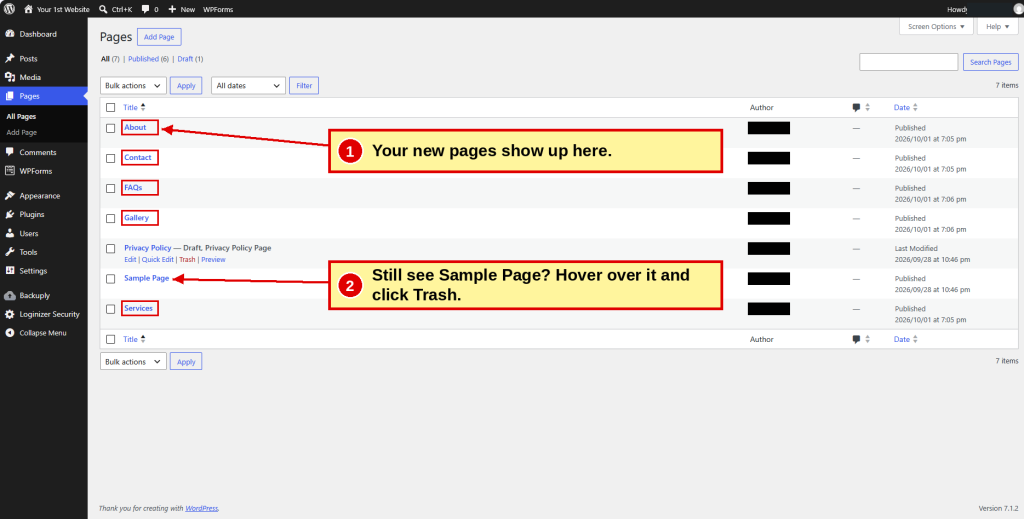
Go to: Pages → All Pages
- ☐ All your new pages are listed.
- ☐ Sample Page is still there? Hover over it and click Trash.
Pages Under Pages
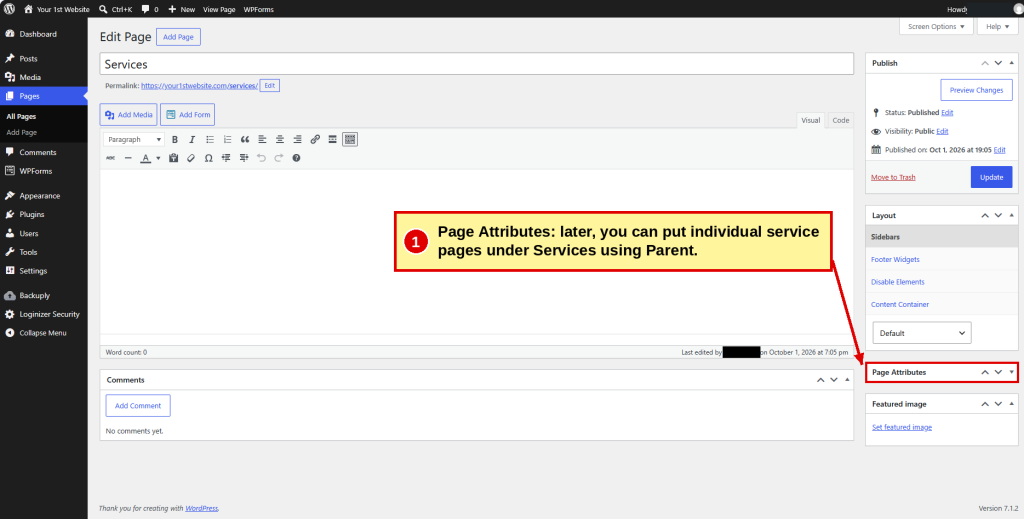
Later, if you give a service its own page, use Page Attributes → Parent to put it under Services.
Want to know more? Read Chapter 10: Build Your Other Pages → Sample Pages.
| ← Previous Step 10 Build Your Homepage |
Down & Dirty Step 11 Build Other Pages |
Next → Step 12 Create Contact Page |
