

Your Contact page lets customers reach you right from your website. We’re going to create a contact form, put it on your Contact page, and test it.
Already Installed
You installed WPForms Lite in Step 7. That’s all you need. Ignore the upgrade offers and the WPForms Challenge box.
On This Page
| Add Your Contact Info | Create the Form |
| Check the Settings | Add the Form to Your Page |
| Test Your Form | |
1. Add Your Contact Info
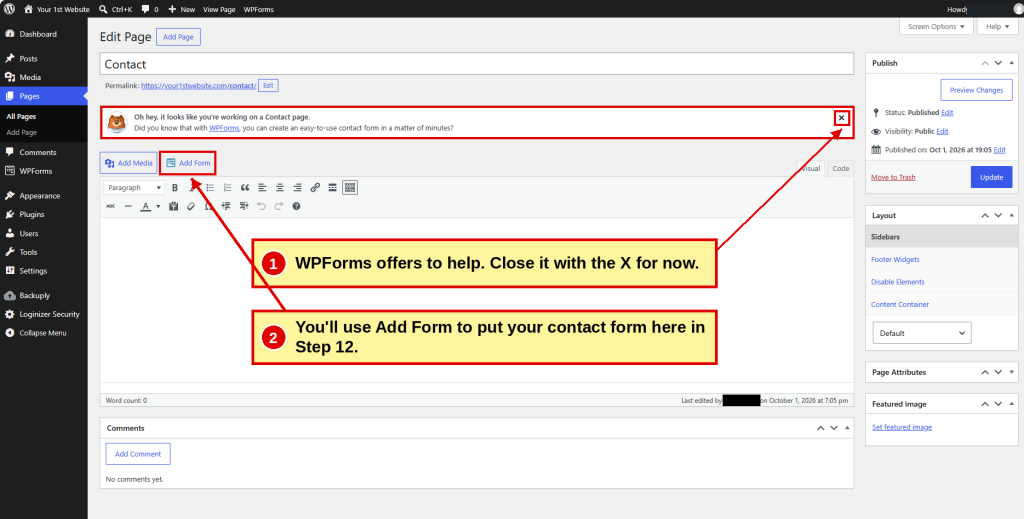
Open your Contact page. If WPForms shows a tip at the top, click the x to close it.
Type a sentence or two at the top of the page:
- ☐ Your phone number
- ☐ Your hours
- ☐ Your address or the area you serve
- ☐ When you’ll reply, like within one business day
Click Update.
2. Create the Form
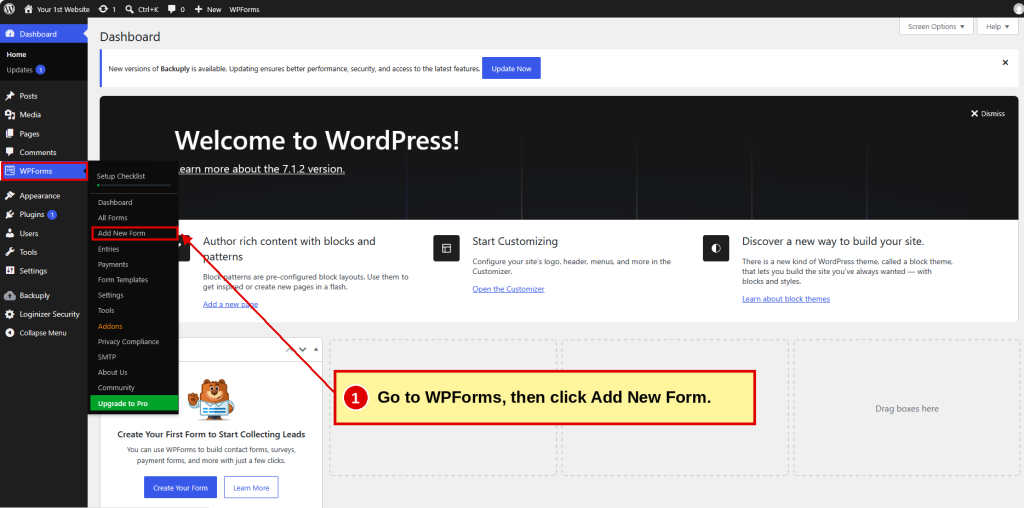
Go to: WPForms → Add New Form
- ☐ Type a name for your form, like Contact Form.
- ☐ Find Simple Contact Form and click Use Template.

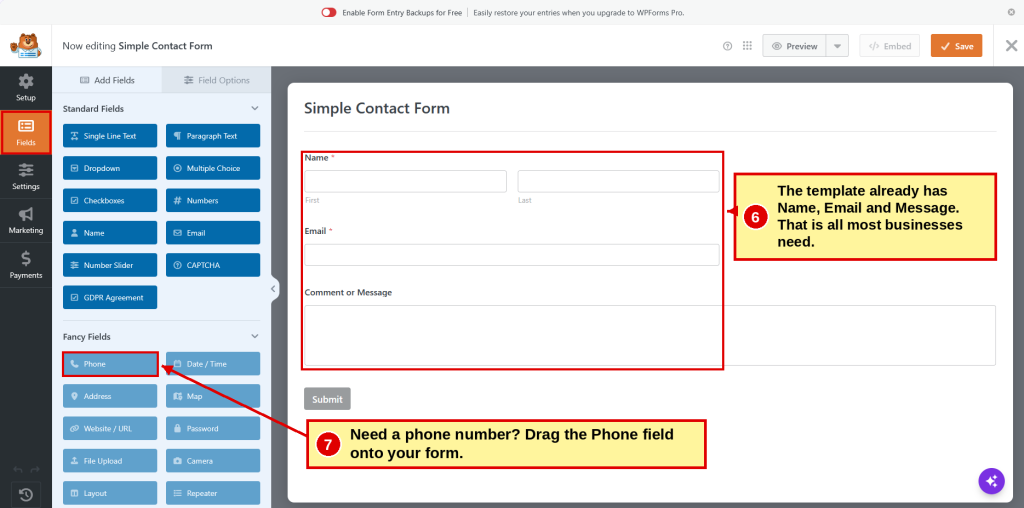
The form already has Name, Email and Message. That’s all most businesses need.
3. Check the Settings
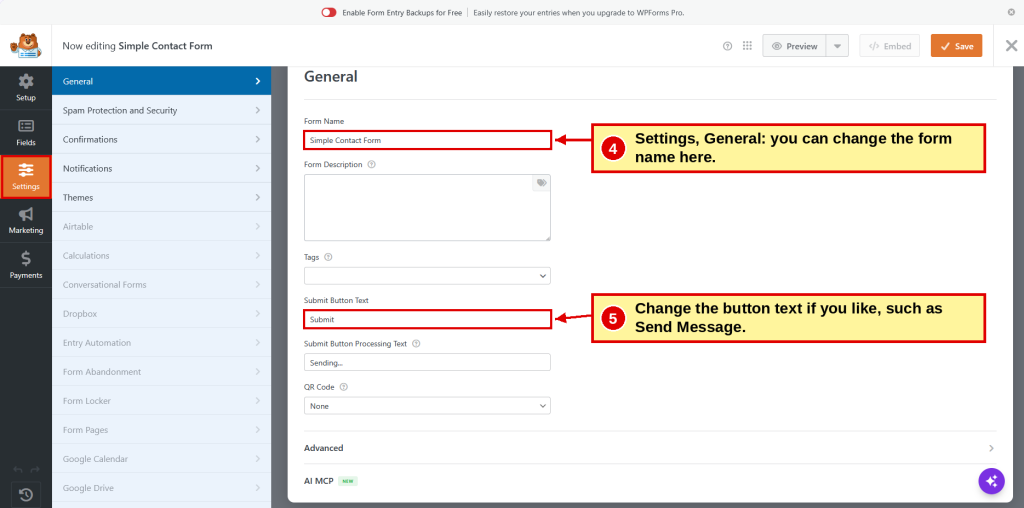
Click Settings on the left.
General
- ☐ Change the button text if you like, such as Send Message.
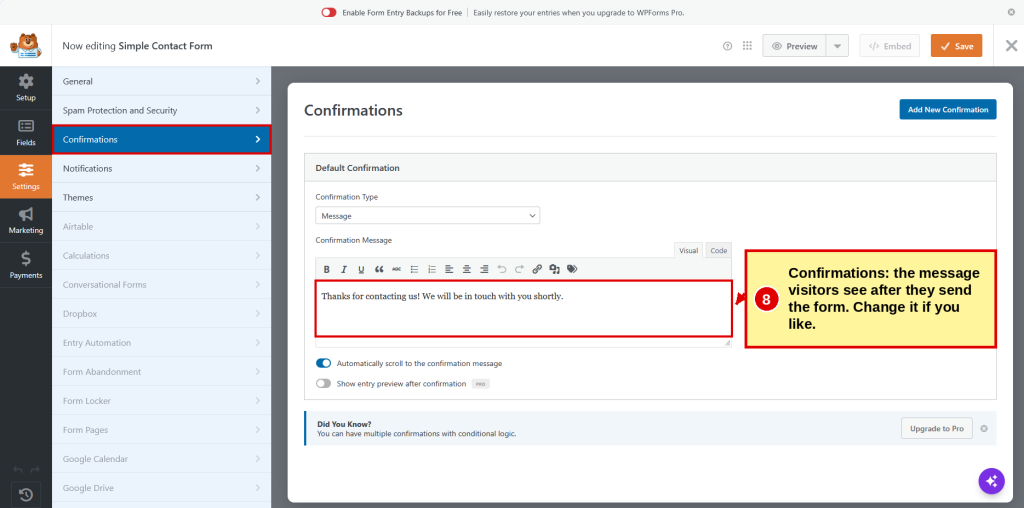
Confirmations
- ☐ This is what visitors see after they send the form. Change it if you like.
Notifications
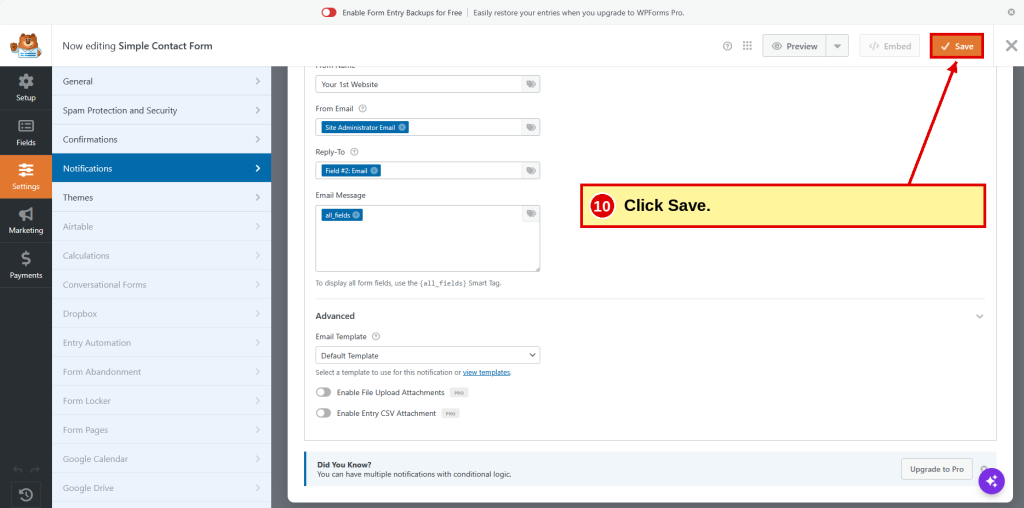
- ☐ Send To Email Address is where messages go.
- ☐ Site Administrator Email is the address you used to install WordPress. Not one you check every day? Click the x and type the right one.

- ☐ Click Save.
4. Add the Form to Your Page
- ☐ Open your Contact page and click below your contact info.
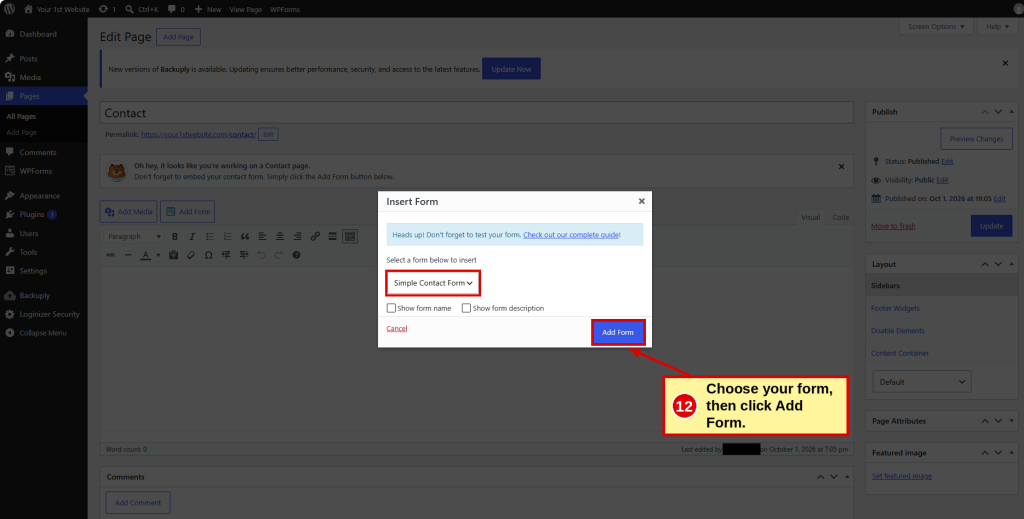
- ☐ Click Add Form.

- ☐ Choose your form and click Add Form.
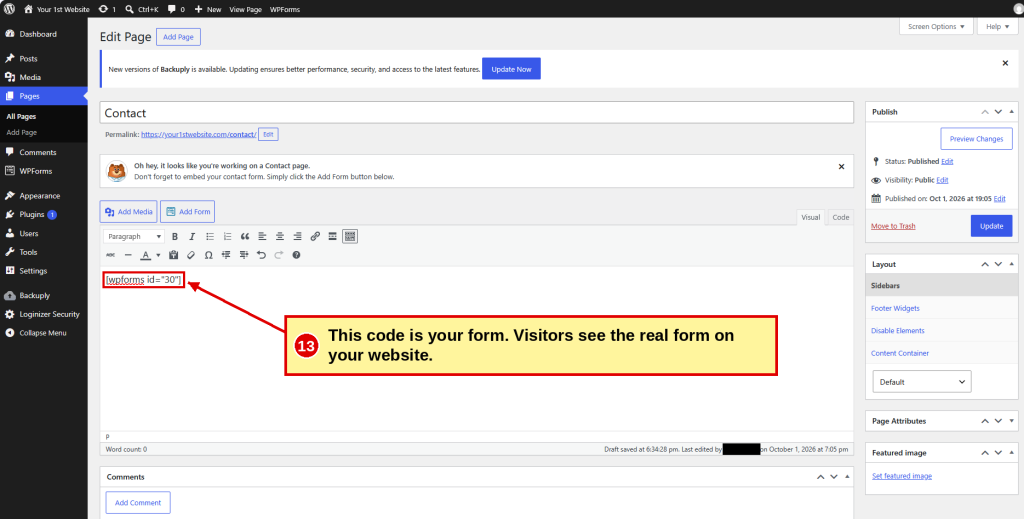
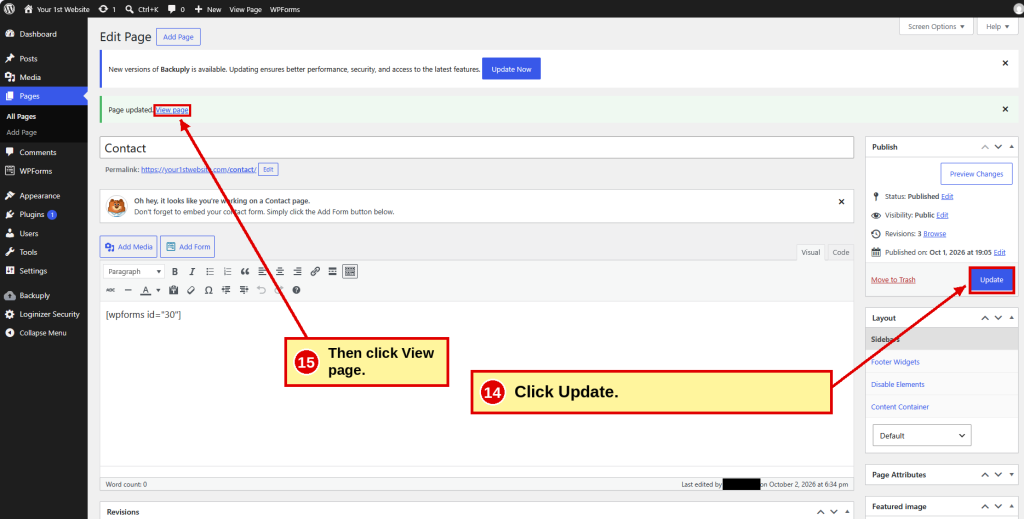
You’ll see a short code like . That’s your form. Don’t type inside it.
- ☐ Click Update.
- ☐ Click View page.
5. Test Your Form

- ☐ Fill out the form with your own name and email.
- ☐ Click Submit. You should see your confirmation message.
- ☐ Check the inbox you chose in Send To.
- ☐ Not there? Check your spam or junk folder.
Message Never Arrived?
Some hosts and email providers block messages sent from websites. We’ll fix that in Step 15: Email. Until then, keep your phone number on your Contact page.
Want to know more? Read Chapter 10: Build Your Other Pages → Create Contact Page.
| ← Previous Step 11 Build Other Pages |
Down & Dirty Step 12 Create Contact Page |
Next → Step 13 Add Images |
