
 Up to now, we’ve been working behind the scenes. We’ve looked around the dashboard, cleared out some clutter, checked your settings and sorted out your plugins. All of that matters, but none of it changes what your visitors see when they arrive at your website.
That’s where themes come in.
What Is a Theme?
A theme controls how your website looks. It decides where your logo sits, how your menu is arranged, what your text looks like, how wide your pages are and how everything rearranges itself when someone visits on a phone instead of a computer.
Think of your website as a house. Your pages, pictures and words are the furniture and everything you’ve put inside. The theme is the paint, the flooring, the trim and the way the rooms are laid out. You can repaint the walls and rearrange the rooms without throwing out a single chair.
That’s the most important thing to understand about themes: a theme changes the look, not the content.
Your Content Stays Put
People are often nervous about changing themes because they’re afraid they’ll lose their work. You won’t. Your pages, posts and pictures are stored separately from your theme. If you switch to a different theme next year, everything you’ve written will still be there. It will simply be dressed differently.
Some things may need attention after a switch, such as where your menu appears or how certain sections are arranged, but your actual content is safe.
The Themes That Came With WordPress

When you open Appearance → Themes for the first time, you’ll probably see a few themes already installed, with names like Twenty Twenty-Five, Twenty Twenty-Four and Twenty Twenty-Three. WordPress releases a new default theme most years and names it after the year.
These are perfectly good themes, and one of them is already active on your website. But they’re designed to show off what WordPress can do, not necessarily to build a small-business website quickly and easily.
There are thousands of other themes available. Some are free, some cost money and some are free to start but keep reminding you to upgrade. Many are loaded with fancy features, sample pages and extra tools that can slow your website down and make it harder to learn.
We’re going to keep things simple.
Why We’re Using GeneratePress
For this guide, we’ll use a free theme called GeneratePress.

GeneratePress is clean, fast and dependable. It doesn’t come loaded with flashy extras you’ll never use, and it doesn’t try to take over your dashboard. It’s been around for years, it’s used on millions of websites, and its makers keep it up to date.
Just as important, it gives you a plain, tidy starting point. Your website may look a little bare when you first switch to it. That’s exactly what we want. It’s much easier to build something that looks like your business on a clean foundation than to strip away someone else’s design.
Let’s install it.
Installing GeneratePress
- In the left-hand menu, click Appearance → Themes. You’ll see the themes currently installed on your website.
- Near the top of the screen, click Add Theme.
You’re now looking at the WordPress theme directory, a free library of themes you can install directly from your dashboard.
- In the Search Themes box on the right, type generatepress.
- When GeneratePress appears, hover over it and click Install.
It only takes a few seconds. When it’s finished, you’ll see a green Installed banner across the top of the theme.
- Click Activate.
GeneratePress is now your active theme. If you visit your website, you’ll notice it looks different, and probably plainer than before. That’s normal. We’ll dress it up later.
We’re not quite finished, though. There’s one more piece to add.
What’s a Child Theme, and Why Do You Want One?
Every so often, the people who make GeneratePress release an update. Updates fix problems, improve security and keep the theme working with new versions of WordPress. You want those updates.
But when a theme updates, its files are replaced with fresh copies. If you’ve made certain changes directly to the theme itself, those changes can be wiped out in the process.
A child theme solves that problem.
Think of it like a slipcover on a sofa. GeneratePress is the sofa. It does the real work, and its maker can repair or improve it whenever needed. The child theme is the slipcover. It sits on top, holds your personal touches and stays exactly as you left it, no matter what happens to the sofa underneath.
A child theme can’t work on its own. It borrows everything from GeneratePress and only holds your own adjustments. That means both themes need to stay installed, but only the child theme is activated.
You may not need your child theme right away. But setting it up now, before you start building, is much easier than switching over later.
We’ve already made one for you.
Installing the Child Theme
First, download the child theme:
Download the GeneratePress Child Theme (.zip)
Save it somewhere you can find it, such as your Desktop or Downloads folder. Don’t open or unzip it. WordPress needs the .zip file exactly as it is.
- Go back to Appearance → Themes and click Add Theme.
- At the top of the screen, click Upload Theme.
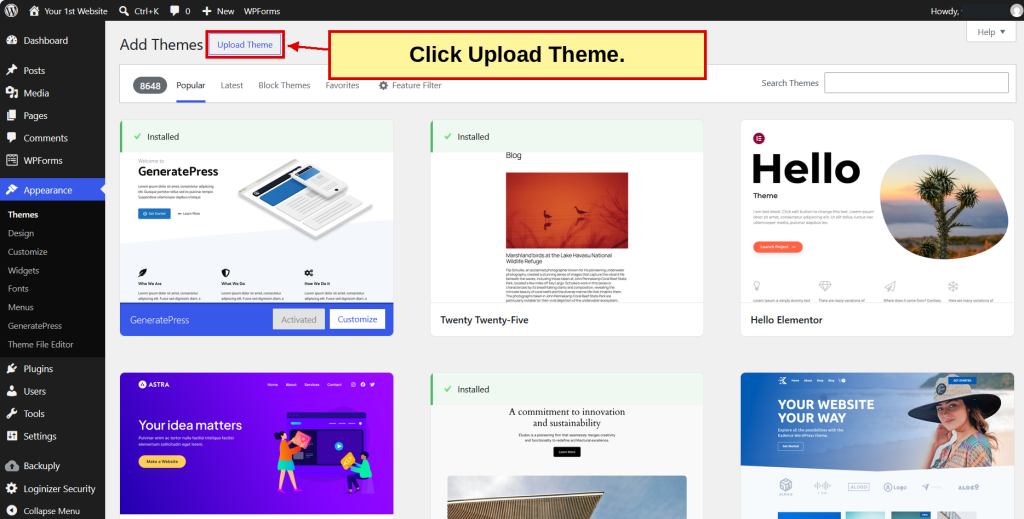

3. Click Browse (or Choose File, depending on your browser) and select the generatepress-child.zip file you downloaded.


4. Click Install Now.
WordPress will unpack the file and install it. When it’s finished, you’ll see a message saying the theme was installed successfully.

- Click Activate.
That’s it. If you go back to Appearance → Themes, you’ll see GeneratePress Child listed as your active theme, with GeneratePress installed right beside it.

Using a Mac?
Safari sometimes unzips downloaded files automatically, leaving you with a folder instead of a .zip file. If that happens, right-click the generatepress-child folder, choose Compress, and upload the new .zip file instead.
What About the Other Themes?
You’ll still see Twenty Twenty-Five and the other default themes on your Themes screen. They aren’t doing any harm, but they aren’t doing anything useful either.
It’s a good idea to keep one of them, such as Twenty Twenty-Five, as a spare. If something ever goes wrong with your theme, WordPress has something to fall back on. The others can be deleted when you’re ready. Click the theme, then click Delete in the lower-right corner of the window that opens.
Never delete GeneratePress. Your child theme depends on it.
Prefer the Down & Dirty Version? Step 8: WordPress Themes
Our illustrated Down & Dirty guide walks you through installing GeneratePress and the child theme with numbered instructions, screenshots and checkboxes.
Coming Up: Giving Your Website Its Look
Your website now has a solid foundation. Next, we’ll start making it look like your business by choosing colors, fonts and layout options, and adding your logo.
| ← Previous | Chapter 7 | Next → |
