
 You already know how to build a page. You did it when you built your homepage.
Every other page on your website starts the same way: Pages → Add Page, type a title, add your words, click Save Draft as you go, then Publish. There’s nothing new to learn on that screen. The only thing that changes from page to page is what you put on it.
So instead of walking through the buttons again, let’s look at what finished pages can look like.
The examples below belong to Joe’s Auto Repair, the same imaginary business we used when we built the homepage. Your pages won’t look exactly like these, and they shouldn’t. Your business isn’t Joe’s. But seeing a finished page can make it much easier to start your own.
An Example About Page
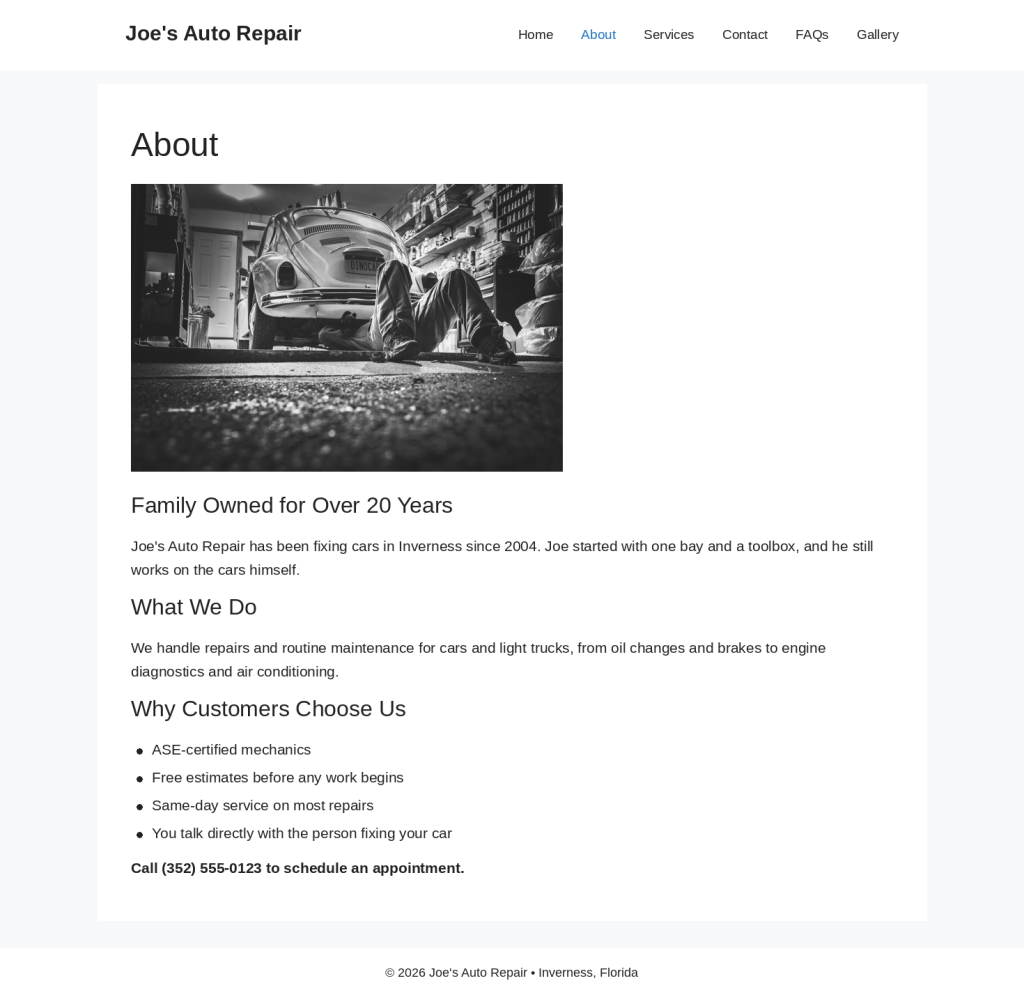
Notice what Joe’s About page does and doesn’t do.
It doesn’t tell his life story. It answers the questions a new customer is quietly asking: How long have you been around? What do you work on? Why should I trust you with my car?
The photo shows real work in a real shop. The section titles let a visitor skim and land on the part they care about. The short list under Why Customers Choose Us says in a few seconds what would take a paragraph to explain.
And the page ends by telling the visitor what to do next: call.
An Example Services Page
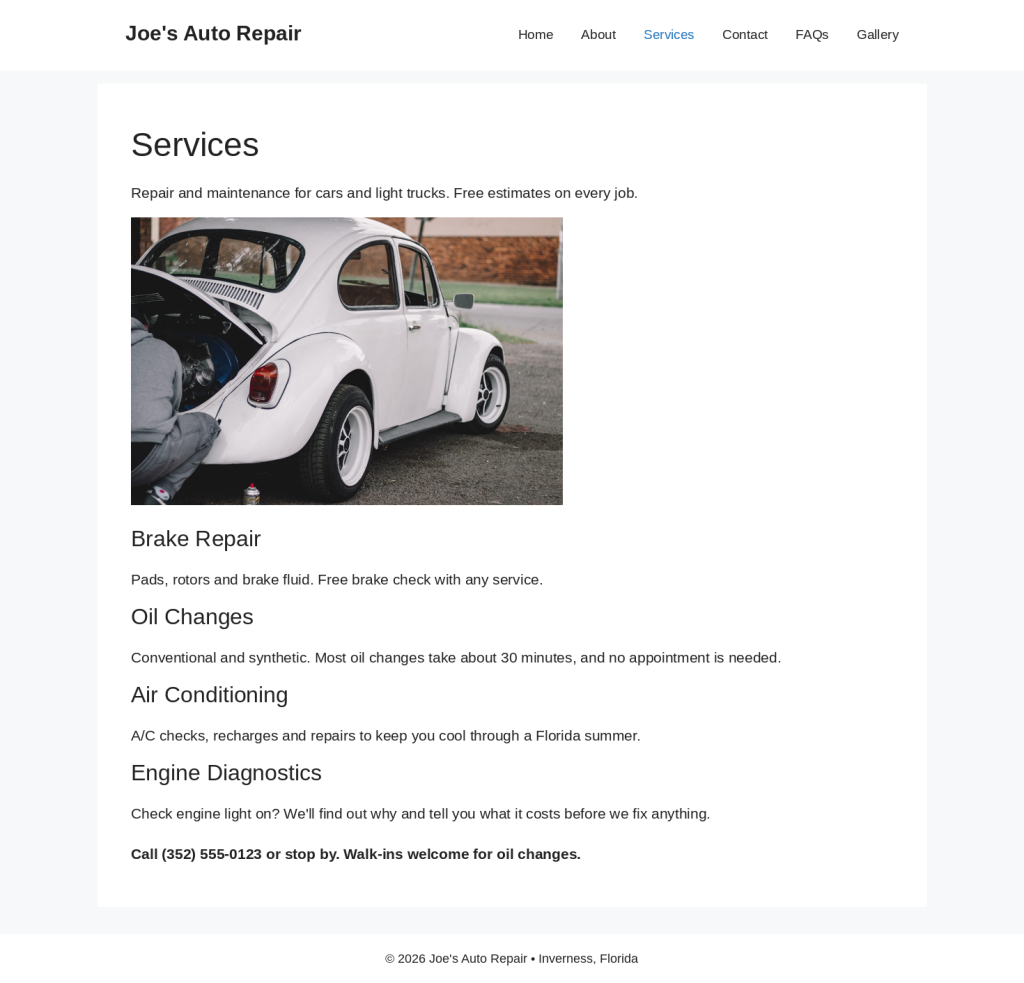
Joe offers a lot more than four services, but he doesn’t list every part he’s ever replaced. He groups his work into the things customers actually call about: brakes, oil changes, air conditioning and that dreaded check engine light.
Each service gets a heading and a sentence or two. Just enough for a visitor to think, yes, that’s what I need.
Look at the small details, too. No appointment needed. Free brake check. We’ll tell you what it costs before we fix anything. Those little promises answer worries before the customer has to ask, and they’re often what gets the phone to ring.
If one of Joe’s services grows big enough to need more explanation, he can give it a page of its own later. For now, one Services page does the job.
An Example FAQ Page
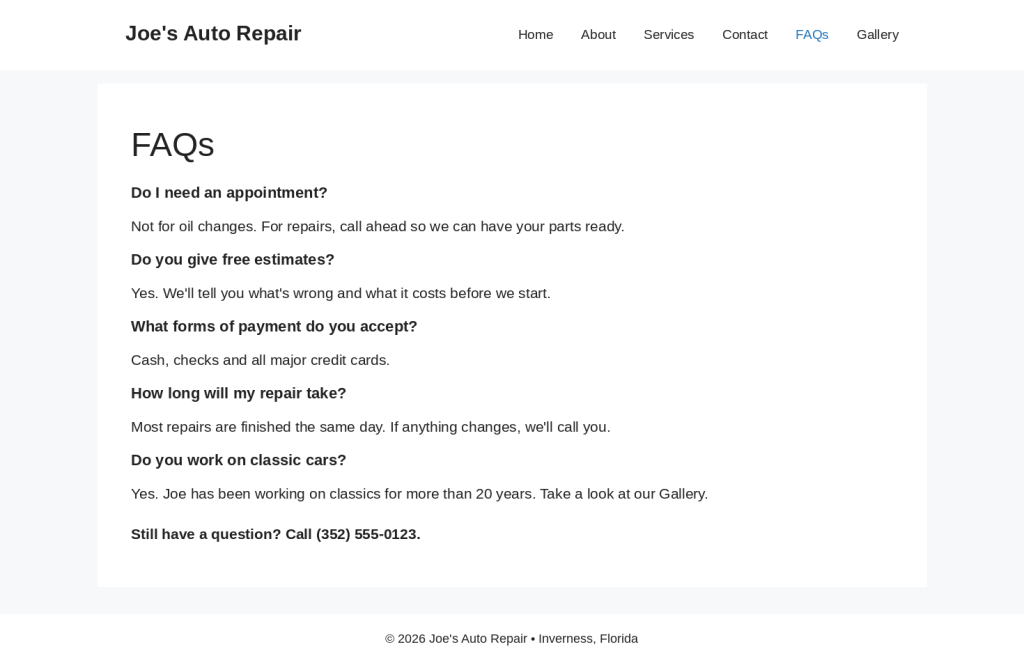
Joe’s FAQ page is the simplest of the three. A question in bold, a short answer underneath, repeated five times.
Every question on it is one Joe really gets asked, sometimes several times a day. Every answer is written the way he’d say it if the customer were standing at his counter.
Notice the last answer, too. When someone asks about classic cars, Joe points them to his Gallery. A good FAQ page doesn’t just answer questions. It sends visitors to the page that will help them next.
What These Pages Have in Common
Look at all three again and you’ll see the same pattern:
- A clear title, so visitors know where they are.
- Short sections with headings, so visitors can skim.
- Plain, friendly language. No sales pitch.
- A real photo where it helps.
- A next step at the end: call, visit or look at another page.
None of these pages is long. None of them is fancy. Each one simply gives a customer the information they came for and tells them what to do next.
That’s all a good page needs to do.
Your Turn
Pick one page from your list and build it. Don’t try to do them all at once.
Write it, save it, preview it, and read it as if you’d never heard of your business. If something sounds stiff or confusing, fix it. Then move on to the next one.
And if you get stuck on what to say, remember the AI assistant from Chapter 8. Tell it about your business and ask it to draft a first version, then rewrite it in your own words.
Prefer the Down & Dirty Version?
Step 11: Build Other Pages
Our illustrated Down & Dirty guide walks you through building your other pages with numbered instructions, screenshots and checkboxes.
Coming Up: Your Contact Page and Form
Next, we’ll build your Contact page and add a form so customers can send you a message right from your website.
| ← Previous Chapter 10 Build Your Other Pages |
Website Guide 101 Chapter 10 Sample Pages |
Next → Chapter 10 Create Contact Page |
