
You’ve purchased your domain name, arranged your hosting and installed WordPress. Now comes the interesting part: turning that empty website into something your customers can actually use.
The first time you open WordPress, you may wonder what you’ve gotten yourself into. There are menus, buttons, notifications, unfamiliar terms and possibly a collection of plugins you didn’t even know you installed.
Don’t worry. You don’t need to understand everything on that screen today.
We’re going to explore WordPress, get rid of some unnecessary clutter, adjust a few settings and get everything ready to build your website.
By the time we’re finished, you’ll know where to find the tools you need, what they do and how to use them.
Your First Visit to the Dashboard
Remember that administrative address we bookmarked after installing WordPress?
https://yourdomain.com/wp-admin/
That’s your entrance to the private side of your website. Replace yourdomain.com with your actual domain name. If you’re not already logged in, enter the username and password you created during installation.
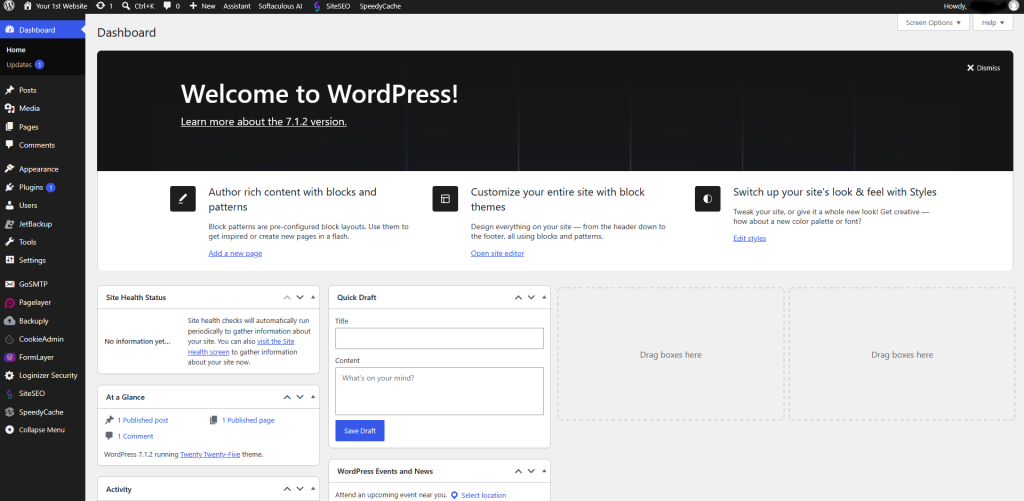
Your dashboard is your website’s control center. It’s where you’ll create pages, add pictures, change your site’s appearance, install additional tools and maintain your website.
The important thing to understand is that your dashboard isn’t what visitors see. It’s where you work behind the scenes.
At the top of the screen, you’ll find the WordPress toolbar. Depending on where you are, it provides shortcuts for viewing your website, adding new content and accessing your account.
Down the left side is the main navigation menu. We’ll be spending quite a bit of time here.
What’s in That Left-Hand Menu?
- Dashboard: Your starting point. Shows updates, notices and information about your website.
- Posts: For articles, news, announcements or blog entries.
- Media: Where your uploaded pictures and other media files are stored.
- Pages: Where you’ll create your Home, About, Services and Contact pages.
- Comments: Where you can review and manage comments visitors leave, if you allow them.
- Appearance: Controls your theme and many of the visual elements of your website.
- Plugins: Additional tools that give WordPress more features.
- Users: Manages people who have permission to work on your website.
- Tools: Contains utilities for managing and moving website content.
- Settings: Controls how WordPress operates.
You’ll notice that some menus have additional choices when you hover over or click them. As you install plugins, new menu items may appear.
You don’t need to memorize any of this. You’ll become familiar with the menus as we use them.
Let’s Clean Up That Dashboard
Before we start building anything, let’s get rid of some clutter.
Screen Options: Make Some Room
Look near the upper-right corner of your dashboard for a small tab labeled Screen Options.
Click it.
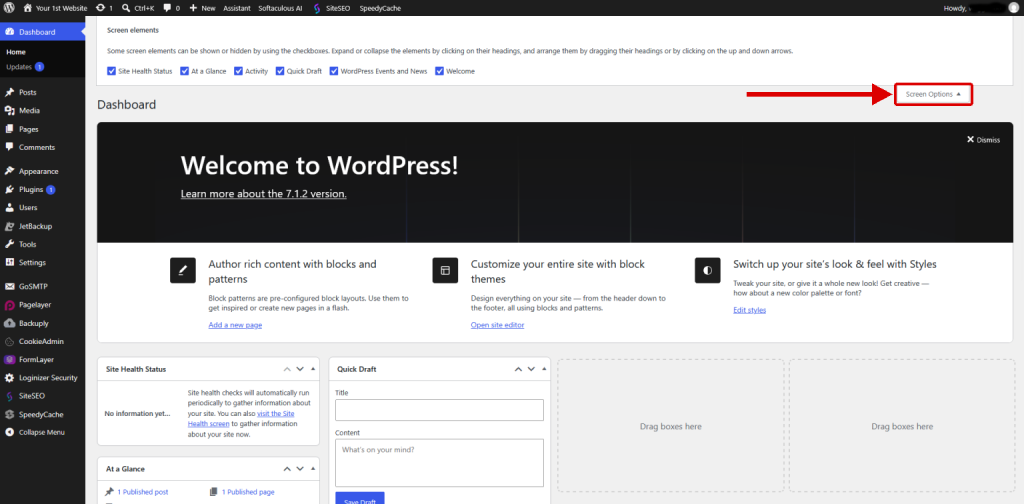
You’ll see options for showing or hiding different dashboard panels. You might have panels for site activity, a quick draft, WordPress events or other information.
Uncheck any panels you don’t want to see. They aren’t deleted; they’re simply hidden from your dashboard. You can bring them back whenever you want by opening Screen Options and checking them again.
This is your workspace, so arrange it in a way that makes sense to you.
What About All Those Plugins?
Depending on how WordPress was installed, you might already have several plugins. Some hosting installers include additional plugins automatically.
We’ll sort out which ones to keep, remove the rest and install the few we actually need when we get to the Plugins section of this chapter.
And That Sample Content?
WordPress also adds a sample post, page and comment. Leave them for now. They’re useful for seeing how things look while you build, and we’ll clear them out in Chapter 14: Final Touches.
Prefer the Down & Dirty Version? Step 6: WordPress Settings
Our illustrated Down & Dirty guide walks you through your WordPress setup with numbered instructions, screenshots and checkboxes.
Coming Up: Your WordPress Settings
Now that we’ve had a look around and removed some unnecessary clutter, it’s time to make sure WordPress is configured for your website.
We’ll check your site title, tagline, time zone, permalinks and other important settings before we start building.
| ← Previous Chapter 6 Installing WordPress |
Website Guide 101 Chapter 7 Inside WordPress |
Next → Chapter 7 Settings → General |
