

Before You Begin: Have your domain name from Step 1, an email address you can access, and your payment method ready.
Get $25 Toward Your Hosting! VeeroTech has confirmed that customers who sign up through our referral link receive a $25 account credit on eligible hosting purchases.
Referral disclosure: WebByDiane may receive a referral reward. We’ll verify the offer and credit timing before publication.
1. Open VeeroTech
Click the referral link above to visit VeeroTech.

2. Select Shared Hosting
In the top navigation menu, click Shared Hosting.

3. View the Hosting Plans
On the Shared Hosting page, click VIEW PLANS.

4. Compare the Hosting Plans
Review the available plans and their features. Consider how many websites you intend to build before choosing your hosting package.

Quick Tip: The Core plan is designed for one website. If you intend to host multiple websites, compare the available plans before purchasing.
5. Compare Annual and Monthly Billing
Use the billing options to compare the cost of paying annually versus monthly.
Annual Billing
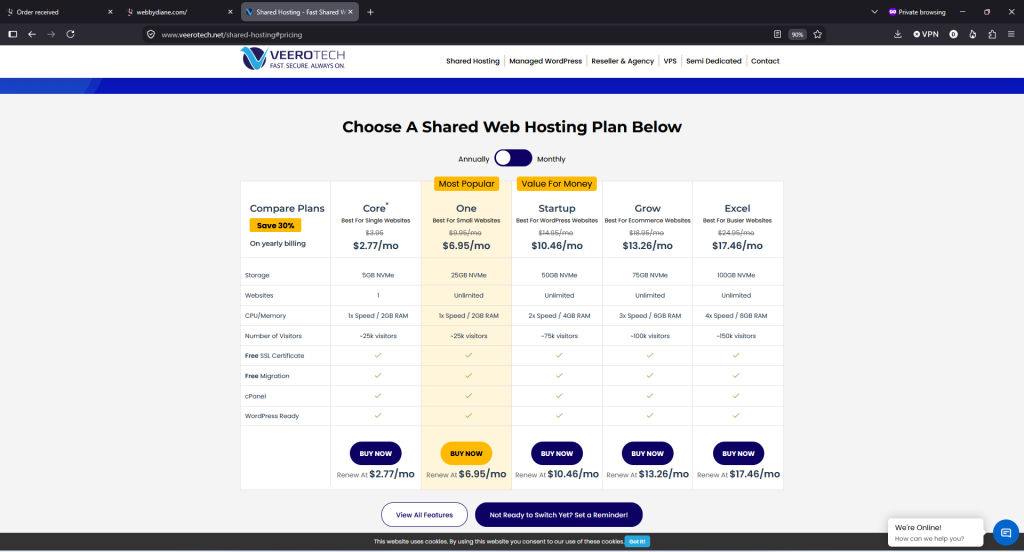
Monthly Billing

Quick Tip: Monthly or Annual? Annual billing may offer a lower monthly equivalent, but you’ll generally pay for the full year upfront. Monthly billing spreads out your payments.
Check the total due today and the renewal price before deciding.
6. Choose Your Hosting Plan
Once you’ve compared the features and prices, select the hosting plan and billing period that suit your needs.
7. Enter Your Domain Name
Since you purchased your domain in Step 1, select I will use my existing domain and update my nameservers.
Enter your domain name, select its extension (such as .com), and click USE.
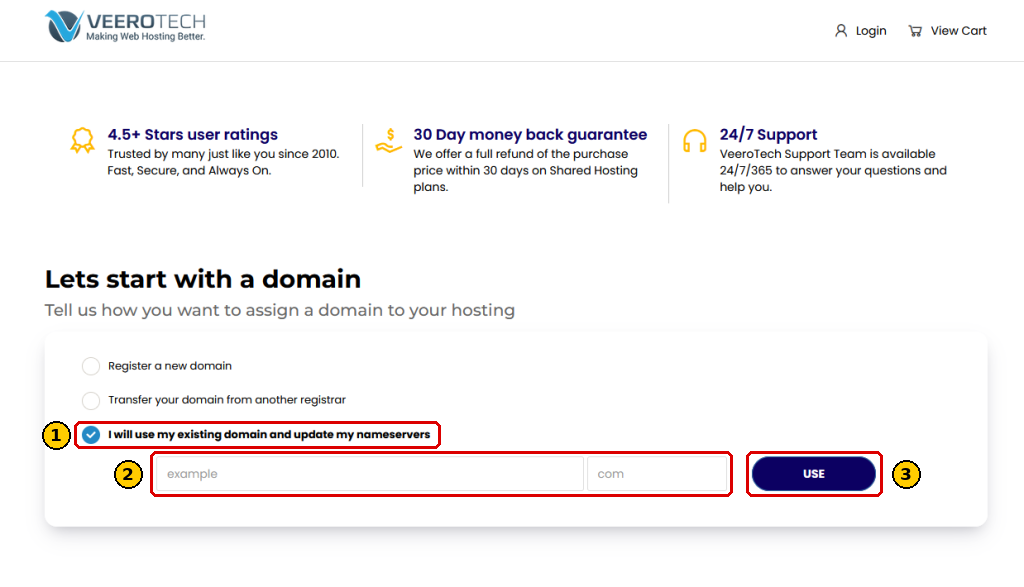
Quick Tip: If you already have a domain, you don’t need to buy another domain or transfer it to VeeroTech. We’ll connect your domain to your hosting in Step 3.
8. Review Your Order
Almost there! Before proceeding, make sure everything in your shopping cart is correct.
- Check your hosting plan.
- Verify your domain name.
- Confirm your billing period.
- Review the total due today.

Quick Tip: If you have a promotional code, enter it here and click Validate Code. Otherwise, click Checkout.
The $25 referral credit is applied to your hosting account, subject to program terms. Don’t subtract it from your checkout total.
9. Create Your Hosting Account
Now it’s time to create your VeeroTech account. Enter your first and last name, email address, phone number and billing address. The company name is optional.
If you already have a VeeroTech account, use the existing customer login instead.

Quick Tip: Use an email address you already have access to. You’ll need it to receive your hosting account information and important notices.
10. Set Up Your Account Security
Complete the additional information requested by VeeroTech.
Create a strong password, confirm it and choose a security question and answer.
Quick Tip: Save your login information in a secure password manager. You’ll need it to access your hosting account later.
11. Choose Your Payment Method
VeeroTech offers credit card and PayPal payment options on the checkout screen.
Select your preferred payment method and enter the requested payment information.
Review the total due today before continuing.
Choose whether you want to join the mailing list, then read the Terms of Service.
When you’re satisfied with your order, check the agreement box and click COMPLETE ORDER.
Quick Tip: Check your billing amount one last time before submitting your order.
12. Save Your Hosting Information
Congratulations! You’ve purchased your web hosting.
Check your email for your order confirmation and hosting account information from VeeroTech.
Keep these emails handy. You’ll need your hosting nameservers for the next step.
Before You Move On
☐ My hosting order is complete.
☐ I’ve received my confirmation email.
☐ I’ve saved my hosting login information.
☐ I know where to find my nameservers.
What’s Next?
Now that you have your domain name and hosting account, it’s time to connect them.
| ← Previous Step 1 Buy Your Domain Name |
Down & Dirty Step 2 Buy Your Web Hosting |
Next → Step 3 Point Your Domain to Your Hosting |
Want to know more? Read the corresponding Full Guide chapter on web hosting.
