

Widgets add content to your sidebar and footer, the parts that show on every page. We’re going to clean out the widgets WordPress added, add a Pages widget to the sidebar and put your business hours in the footer.
What Is a Widget?
A widget is a small block of content that sits outside your page content, in the sidebar or footer.
The Widgets screen in this step comes from the Classic Widgets plugin we installed in Step 7.
On This Page
| Open Widgets | Remove Leftover Widgets |
| Add a Pages Widget | Add Your Hours to the Footer |
| Check Your Site | Edit or Move a Widget |
1. Open Widgets
From your WordPress dashboard, go to:
Appearance → Widgets

- Available Widgets (left) are the widgets you can add.
- Widget areas (right) are where widgets show up on your site.
2. Remove Leftover Widgets
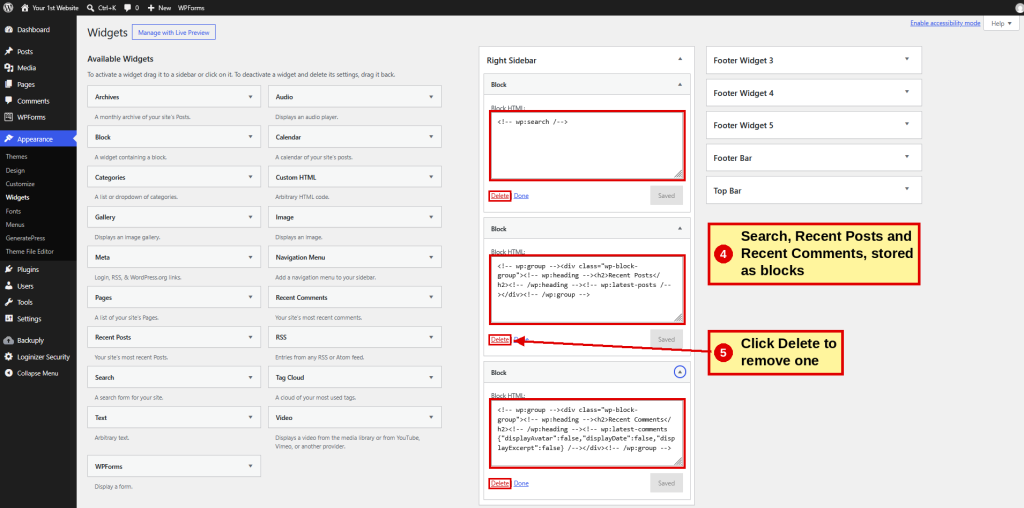
WordPress put three Block widgets in the Right Sidebar: Search, Recent Posts and Recent Comments.
Here’s where they show on your site:

We’re keeping Search and removing the other two.
- ☐ Click the Recent Posts block to open it.
- ☐ Click Delete.
- ☐ Click the Recent Comments block to open it.
- ☐ Click Delete.
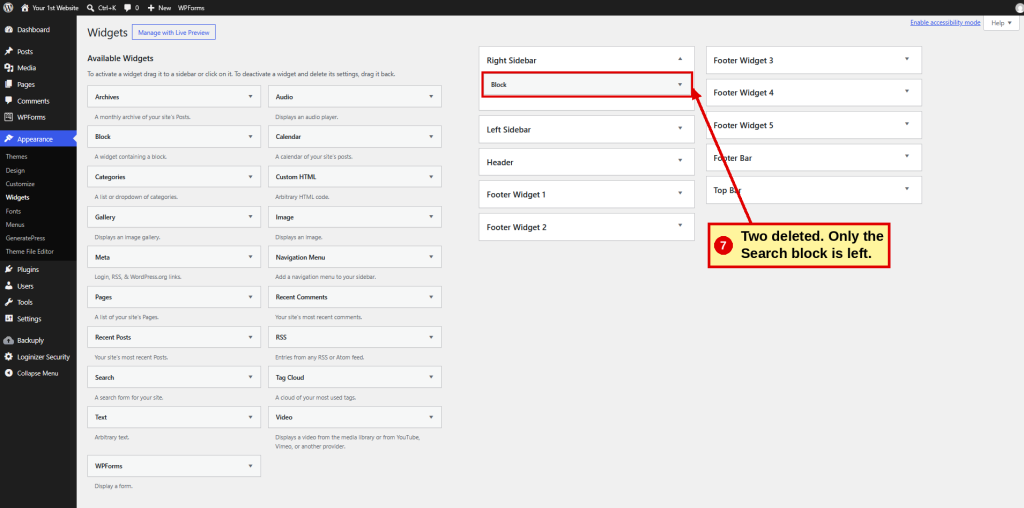
Which Block Is Which?
They’re all labeled “Block.” Open each one and look inside the box: you’ll see search, Recent Posts or Recent Comments.
3. Add a Pages Widget
- ☐ Click Pages in Available Widgets.
- ☐ Choose Right Sidebar.
- ☐ Click Add Widget.
- ☐ Leave the settings as they are.
- ☐ Click Save. The button changes to Saved.

Your sidebar now lists every page on your site:

Get Rid of Sample Page
If Sample Page shows in the list, go to Pages, hover over Sample Page and click Trash.
4. Add Your Hours to the Footer
- ☐ Click Footer Widget 1 to open it.

- ☐ Drag Text from Available Widgets…

- ☐ …and drop it into Footer Widget 1.

Rather Not Drag?
Click Text instead, choose Footer Widget 1 and click Add Widget.
- ☐ In Title, type: Hours
- ☐ Make sure the Visual tab is selected.
- ☐ Type your hours, one per line.
- ☐ Click Save.

When the button says Saved, you’re done.

5. Check Your Site
- ☐ Visit your website.
- ☐ Scroll to the bottom of any page. Your hours are there.
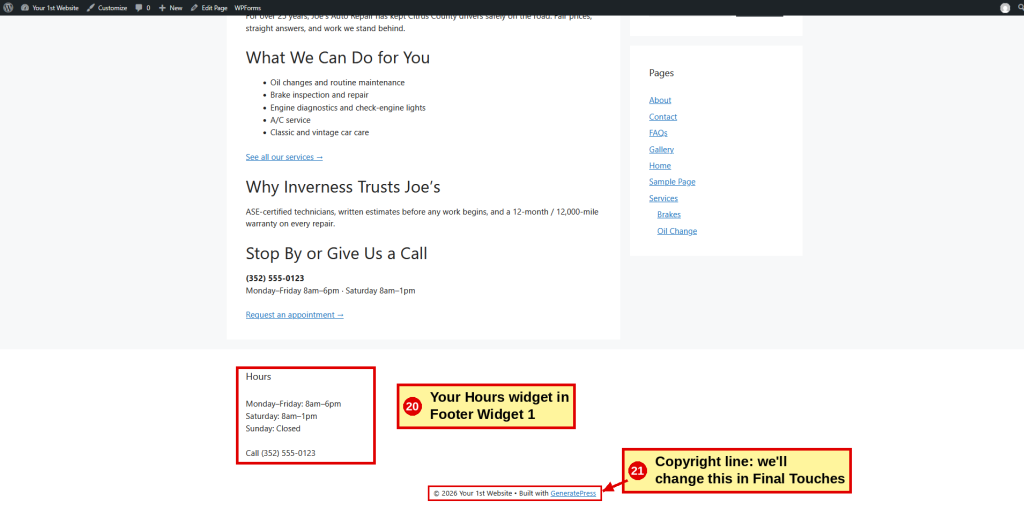
The Copyright Line
The “© 2026 Your 1st Website • Built with GeneratePress” line isn’t a widget. We’ll change it in Final Touches.
6. Edit or Move a Widget
- ☐ Edit: click the widget, make changes, click Save.
- ☐ Reorder: drag the widget up or down in its widget area.
- ☐ Move: drag the widget to a different widget area.
- ☐ Remove but keep settings: drag it to Inactive Widgets at the bottom of the screen.
Want to know more? Read Chapter 12: Widgets.
| ← Previous Step 14: Menus |
Down & Dirty Step 15 Widgets |
Next → Step 16: Email |
