

Your homepage is the front door of your website. We’re going to create it, add your content, publish it and tell WordPress to use it as your homepage.
Words First
Don’t worry about making it pretty yet. Get your content on the page. You can add pictures and polish it later.
On This Page
| Open Add Page | Add Your Content |
| Hide the Page Title | Publish Your Page |
| Make It Your Homepage | |
1. Open Add Page
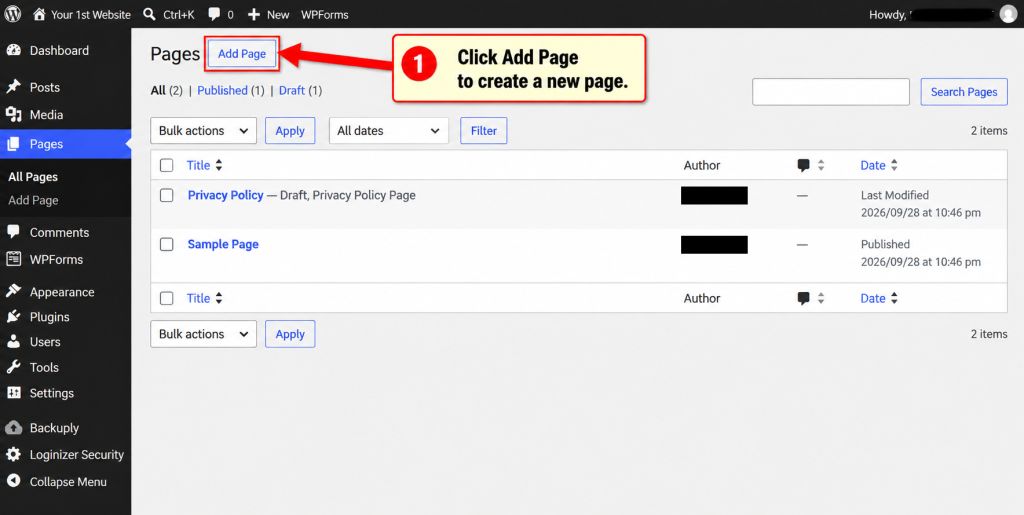
Go to: Pages → All Pages
Click Add Page.
Here’s what you’ll find on the Add Page screen:
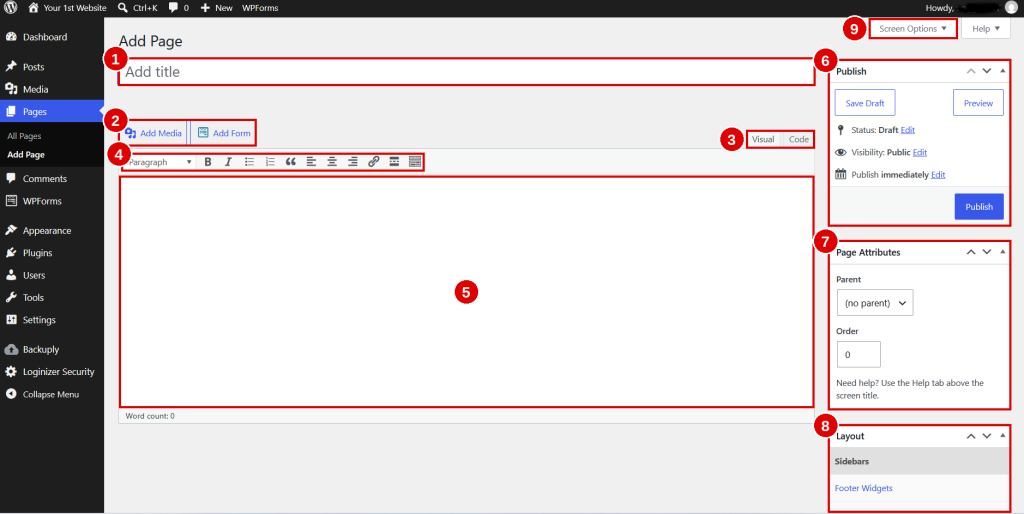
- Title
- Add Media and Add Form
- Visual and Code tabs. Stay on Visual.
- Toolbar
- Writing area
- Publish box
- Page Attributes
- Layout
- Screen Options
2. Add Your Content
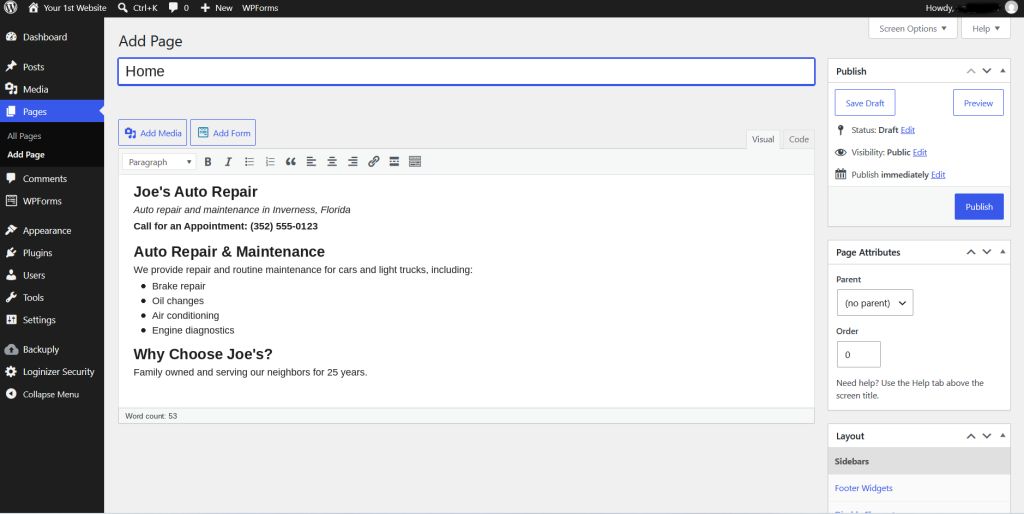
- ☐ In the Title box, type Home.
- ☐ Type your content in the writing area.
- ☐ Use the Paragraph menu to make each section title a Heading 2.
- ☐ Click Save Draft often.
Your homepage should include:
- ☐ Your business name, what you do and where you do it
- ☐ Your main action: call, schedule, request a quote, shop or visit
- ☐ A short introduction
- ☐ Your main products or services
- ☐ Why customers choose you
- ☐ Reviews or other reasons to trust you
- ☐ How to contact you
Stuck on What to Say?
An AI assistant can help you get started. Ask it to draft a short introduction, then rewrite it in your own words.
3. Hide the Page Title
Visitors don’t need to see the word Home at the top of your homepage.
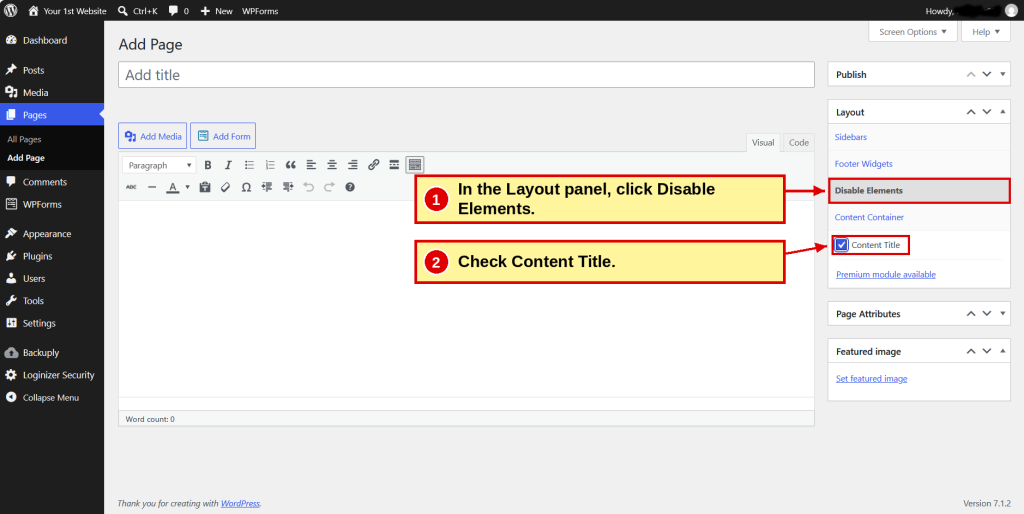
In the Layout panel on the right:
- ☐ Click Disable Elements.
- ☐ Check Content Title.
4. Publish Your Page
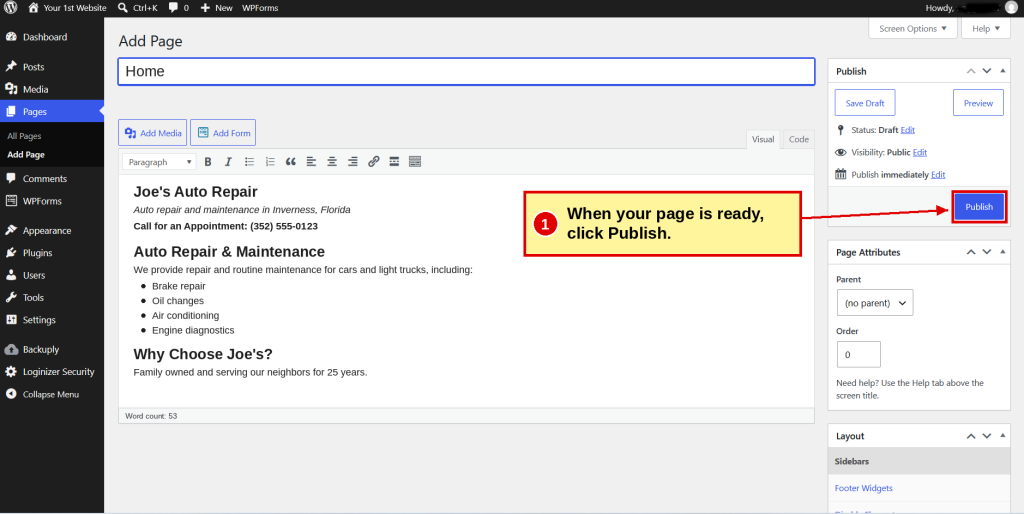
- ☐ Click Preview to check your page.
- ☐ Click Publish.
5. Make It Your Homepage
Go to: Settings → Reading
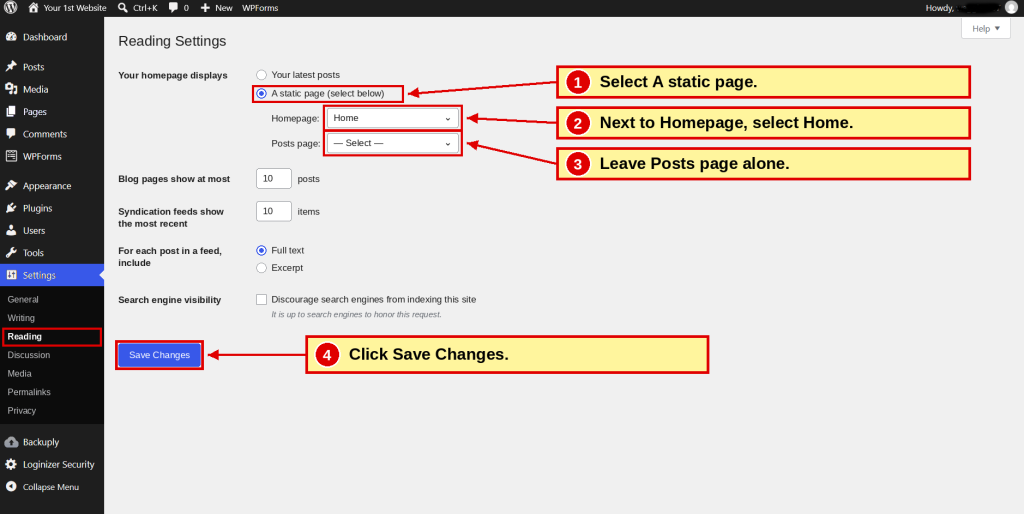
- ☐ Under Your homepage displays, select A static page.
- ☐ Next to Homepage, select Home.
- ☐ Leave Posts page alone.
- ☐ Click Save Changes.
Visit your website. Your new homepage should be the first thing you see.
Don’t Put Everything on the Homepage
Your homepage is the front door, not the entire building. The details go on your other pages.
Want to know more? Read Chapter 9:Build Your Homepage
← Step 9 Planning Your Pages |
Down & Dirty | Step 11 Build Your Other Pages → |
